Stack Key Editor
Stack Key assigns several actions to one hotkey. Advance on each press, or reuse the previous action and switch candidates only with rapid repeated presses. A single-slot Stack Key can also assign a hotkey to a short piece of code.
This page describes PME 2.1 settings.
Configuration guide — features, combinations, and uses (for AI)
Name: Stack Key / Type ID: SCRIPT.
Uses one key to move through several candidates in sequence. Unlike Macro Operator, it does not complete all steps in one invocation.
Inputs: Command or Hotkey slots. Start with one, then add, remove, or reorder as needed. Normal cycling uses enabled items.
Order: top to bottom, wrapping to the first after the last. See slots.
Continuation: decide Remember Slot, Advance On, and Repeat Timeout first. See advanced settings.
Constraints: check input limits and the execution editor, mode, and target for code. Remembering a slot position does not save Blender data.
Combinations: call a Macro from each Command to give a candidate several sequential actions. See usage patterns for calling menus by name.
Example design: use Remember Slot + Quick Repeat to reuse a tool normally and change it only on rapid presses. Use Every Press to advance every time.
Validation: test the first press, rapid repetition, delayed presses, and presses after another action separately. Check Undo history when using Undo Previous Command.
Variable lifetime: Commands share variables while continuing the same cycle, separately from remembering the slot position. See variable sharing and reset conditions.
Interface and editing workflow
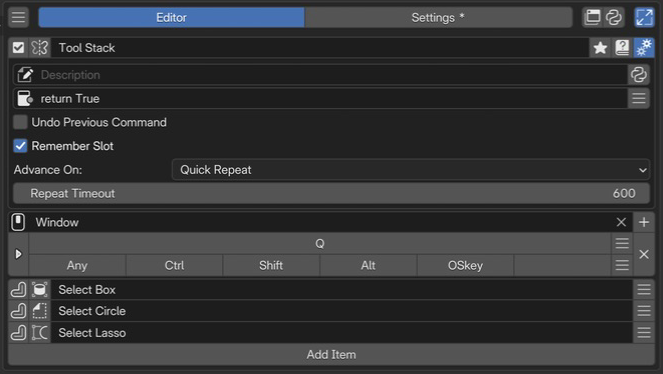 1Name and basic controlsCheck the name and enabled state of the setup containing the candidates.
2Advanced settingsChoose whether to remember the previous candidate and when to advance to the next.
3Keymap / HotkeyChoose where and with which key to invoke it. This example uses Q.
4Cycling slotsArrange candidates in their cycling order. This example contains three selection tools.
1Name and basic controlsCheck the name and enabled state of the setup containing the candidates.
2Advanced settingsChoose whether to remember the previous candidate and when to advance to the next.
3Keymap / HotkeyChoose where and with which key to invoke it. This example uses Q.
4Cycling slotsArrange candidates in their cycling order. This example contains three selection tools.
Select a Stack Key in the list, check its name and enabled state, then configure invocation and slots. See Common Editor Elements for lists, search, and tags; see name, hotkeys, slots, and advanced settings for each section.
Name and basic controls
Identify the configuration by its name and enabled state. For tags, renaming, references, and related controls, see selected menu settings. This type has no menu preview button.
Keymap / Hotkey
Set where and how to invoke it. See the shared Hotkey settings for input controls.
Slots
Normal cycling uses enabled slots from top to bottom. Every Press advances on each press; Quick Repeat advances on rapid successive presses. After the last slot, it returns to the first.
Add, remove, and reorder slots.
Enable or disable individual slots.
Each slot has a display name shown in the hint at the top of the viewport.
Added in version 2.0.5: Slots now support individual icons. The notification shown when a slot runs includes its name and icon.
Save on the first press, restore on the next
Press once to hide the floor grid; press again to restore it. While continuing the same Stack Key, a slot can read values saved by the preceding slot. Releasing the key alone does not advance it.
        flowchart LR
    A["First press<br/>Save and hide"] --> B["Wait for next press"]
    B --> C["Second press<br/>Restore state"]
    classDef remember fill:#e8f1fb,stroke:#4878aa,color:#172b43;
    classDef restore fill:#e8f5ed,stroke:#45805d,color:#183f28;
    class A,B remember;
    class C restore;
1. First Command — save the original state, then hide
view = C.space_data; start_floor = view.overlay.show_floor; view.overlay.show_floor = False
2. Next Command — restore the state if it was saved
if "start_floor" in globals(): view.overlay.show_floor = start_floor
Set Keymap to 3D View and turn Remember Slot / Undo Previous Command off. Enable both slots and invoke the same Stack Key twice in a perspective 3D Viewport without another operation in between.
view and start_floor are names you choose. start_floor could be banana, provided save and restore use the same name. The second if checks whether the starting value is known; running only the second slot cannot restore an unknown value.
To pass values to another independent invocation or menu, use temporary shared storage U (User Data).
Shared scope and restoration requirements
Lifetime: Commands continuing the same cycle share a Python namespace. A new cycle resets it. With Remember Slot off, another Stack Key or Blender operator can affect whether the cycle resets.
Individual calls: calls with an explicit slot number, and single-slot Stack Keys, create a new namespace each time.
Quick Repeat: advancing within the timeout preserves sharing. Re-running the current slot after the timeout creates a new namespace.
Remember Slot: remembers the slot position, not a separate variable store for each menu. Do not assume saved values survive after another Stack Key is used.
Target and names: the saved 3D Viewport must remain available. Do not overwrite PME-provided names such as
C,E,menu, orslotto store values.Restoration: switching to another operation without running the second slot leaves the changed value in place. Errors and cycle resets do not restore it automatically. Use Sticky Key for press/release restoration, or Modal Operator exit slots for confirm/cancel behavior.
Advanced settings
Open these with the gear button. See the shared advanced settings for Description and Poll.
- Remember Slot:
Remembers the last executed slot position. When disabled, a break in the sequence, such as another Stack Key or Blender operator, restarts from the first slot. Not every input, such as a click, is treated as another operation.
Changed in version 2.0.5: Renamed Remember State to Remember Slot.
- Advance On:
Chooses when to advance with Remember Slot enabled.
Every Press — advances to the next slot on every press.
Quick Repeat — advances only on rapid repeated presses; a delayed press reruns the current slot.
Added in version 2.0.5: Added Advance On. Existing Stack Key configurations retain behavior equivalent to Every Press.
- Repeat Timeout:
The maximum interval recognized as a repeated press when Advance On is Quick Repeat, in milliseconds. Minimum: 1 ms; default: 600 ms.
- Undo Previous Command:
Undoes the previous result before running the next candidate during continuous switching. The first invocation or an explicit-slot call does not undo in the same way. This does not combine several changes into one operation; check the actual results and Undo history.
Viewport hint
During normal cycling, a notification shows the current slot name and icon. It is not shown for a single enabled slot or explicit-slot invocation.
Code and input fields
See the configuration guide above for supported inputs. Field controls are covered in the shared Slot Editor; code guidance is in Code Input and Execution and Code Examples.
Usage patterns and conditions to check
Cycle between two workspaces
This example requires workspaces named Layout and Scripting. Use their actual names if you renamed them.
Slot 1:
C.window.workspace = D.workspaces['Layout']
Slot 2:
C.window.workspace = D.workspaces['Scripting']
One slot: Python code with a hotkey
Write Python or an open_menu() call in one slot and assign a Stack Key hotkey.
open_menu("My Pie Menu")
This can also switch brushes, but brush asset handling varies by Blender version and paint mode. Check the current brush-switching API and target before using older D.brushes assignment examples.
Choose a slot by modifier keys
Named slots can be called externally by name. event_mods(E) returns a string such as "", "Ctrl", "Shift", or "Ctrl Shift" from the current event. Matching these to slot names selects an action by modifiers.
open_menu("My Stack Key", event_mods(E))
This example requires an invocation providing event E. Do not copy it into an evaluation without an event, and ensure the corresponding slot names exist.
Choose a slot by context
open_menu("My Stack Key", "Command 1") if C.mode == 'OBJECT' else open_menu("My Stack Key", "Command 2")
Undo the previous action and rerun with different parameters
This example requires Mesh Edit Mode with a loop already selected for region selection. Check selection and Undo behavior together.
Enable Undo Previous Command to undo the last result before trying the next slot.
Slot 1:
bpy.ops.mesh.loop_to_region(select_bigger=False)
Slot 2:
bpy.ops.mesh.loop_to_region(select_bigger=True)
Related pages