Outcome
Put PME Preferences one action away from the workflow you are shaping. The command opens Blender Preferences and selects PME by its module identifier.
bpy.ops.preferences.addon_show(module="pie_menu_editor")Steps
- Create a Command item in a Pie Menu, Regular Menu, Popup Dialog, or Panel Group.
- Name it something unmistakable, such as PME Preferences.
- Paste the command above into the item’s Command field.
- Invoke the item and confirm that Blender Preferences opens with Pie Menu Editor selected.
- Keep it in an authoring or maintenance menu, away from frequently used modelling actions.


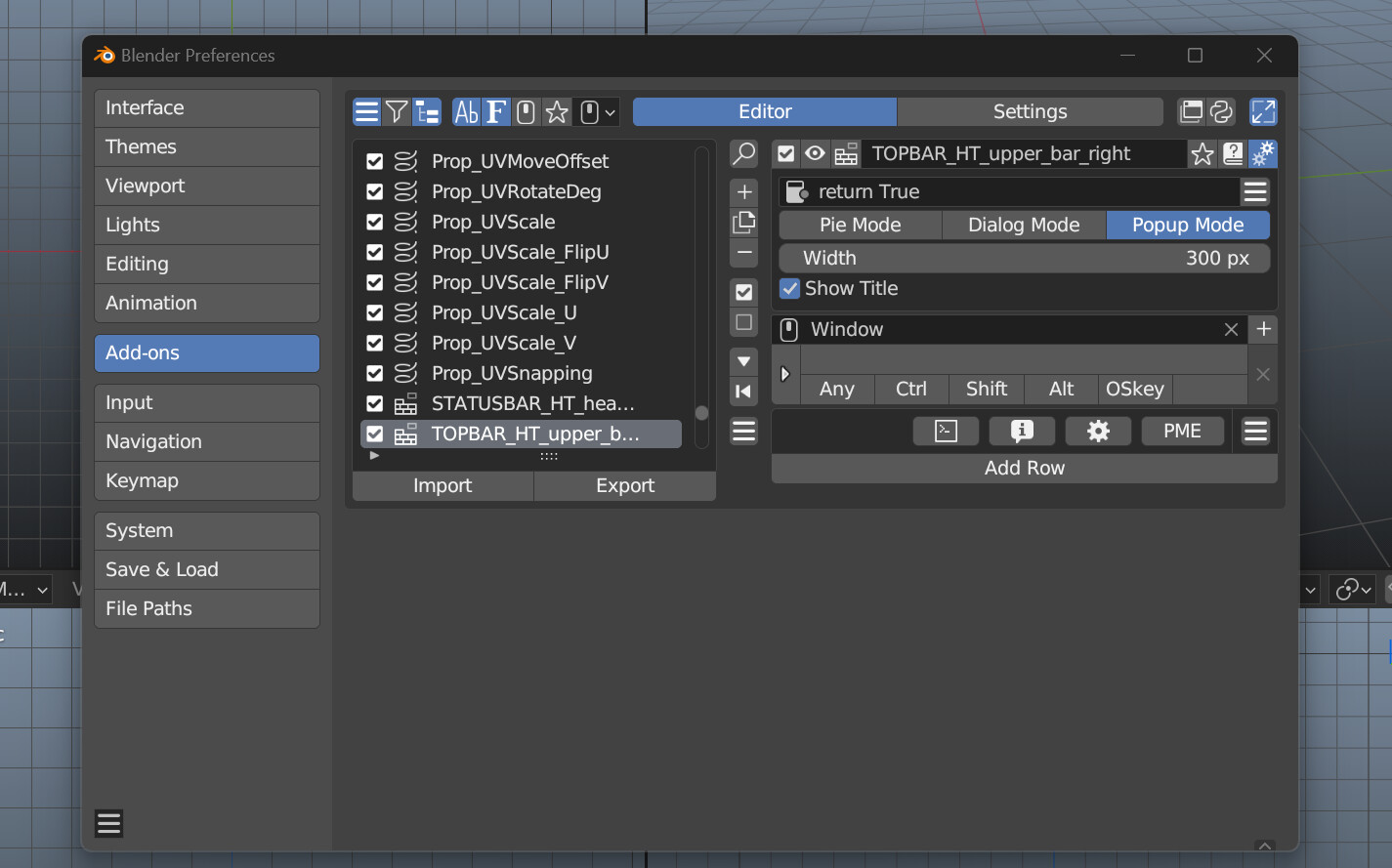
The images are from a 2024 source setup, so newer Blender versions may look different. PME 2.1 still uses the module id pie_menu_editor.
Why use this instead of a small preferences popup?
Use it when you need to compare several PME preferences, resize the settings window, or adjust a menu while looking at its surrounding Blender configuration. The command is a direct route to the original settings.
Pitfalls
- The command depends on PME being installed and enabled under the module id
pie_menu_editor. - Save preference changes through Blender’s normal preference controls.
- A custom command can only be as portable as the Blender version and extension installation that provide its operator. Test it after moving to a new Blender installation.
- Read and understand commands from external posts before adding them to an authoring menu.
Related answers
- Build the first useful menu step by step
- Adjust Pie Menu spacing and theme
- Migrate an existing PME setup safely